Jirion Features - Dashboard, Project Tabs, Bulk Actions
Everything below is in Jirion today. If you are looking for something that is not listed, check what Jirion currently does not do but may be in the works.
Your work at a glance
The Dashboard
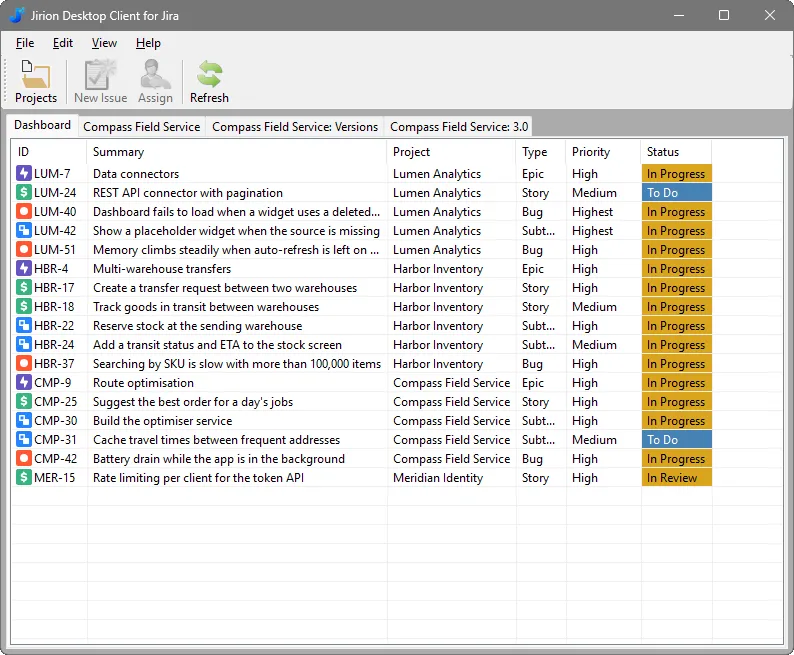
As soon as you sign in, the Dashboard tab lists every issue assigned to you that is not Done, from every project you can see, in your Jira rank order. When someone assigns you something it appears; when you finish it, it drops off.
Lists you can sort
Each list shows the issue key, summary, type (with its Jira icon), rank, priority, status and assignee. Click a column heading to sort by it, and click again to reverse the order. Double-click any issue to open it.
Jump straight to an issue
Choose File → Open Issue, pick the project, enter the number, and Jirion opens it. No searching.
Projects in tabs
File → Open Project adds a tab for any project you can access. Open as many as you need, switch between them as you would browser tabs, and close one from View → Close Tab or by right-clicking its tab.
- Show or hide finished issues. View → Show Done shortens a project's list to what is still open. Jirion remembers your choice.
- Create issues. With a project open, New Issue lets you choose the issue type, then enter the summary, priority, assignee and a rich-text description.
- Refresh reloads the current tab from Jira whenever you want it to.
Working on an issue
Double-click an issue to open it in its own window. You can have several issue windows open at once. Each has four tabs:
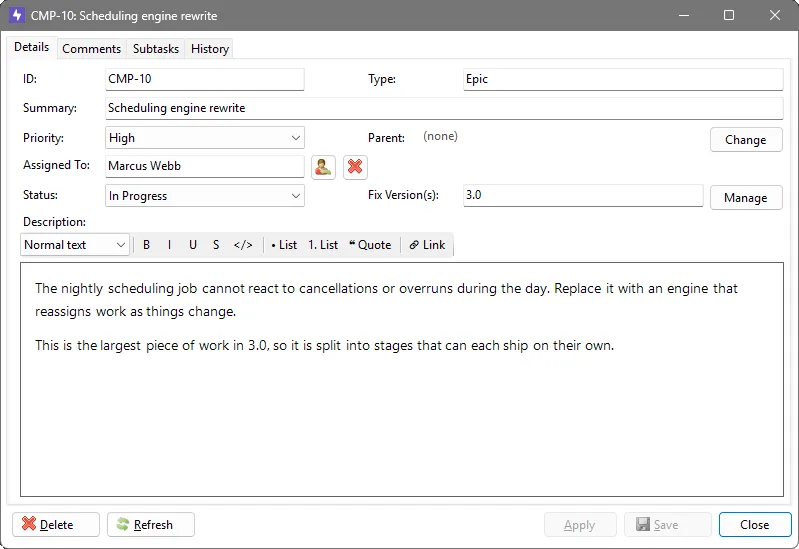
- Details - type, summary, priority, assignee, status, parent, fix versions and description. The Status box offers only the moves your project's workflow allows from where the issue is now.
- Comments - read the discussion and add comments. You can edit your own comments.
- Subtasks - see an issue's subtasks, open one with a double-click, add a new one or link an existing one.
- History - who changed what, and when. Status changes are highlighted in green and reassignments in blue.
Apply saves without closing, Save saves and closes, and Jirion asks before you close a window with unsaved changes. Refresh re-reads the issue from Jira, and Delete removes it (after a confirmation).
Assigning people
Search your Jira users by name, or pick from the people you assigned most recently - they are kept as one-click shortcuts between sessions.
Rich-text descriptions and comments
Jira keeps formatted text in its own format (Atlassian Document Format). Jirion has a built-in editor for it, so descriptions and comments keep their formatting when you read and edit them, instead of being flattened to plain text.
- In descriptions: bold, italic, underline, strikethrough, inline code, six heading levels, bullet and numbered lists, block quotes, code blocks and links.
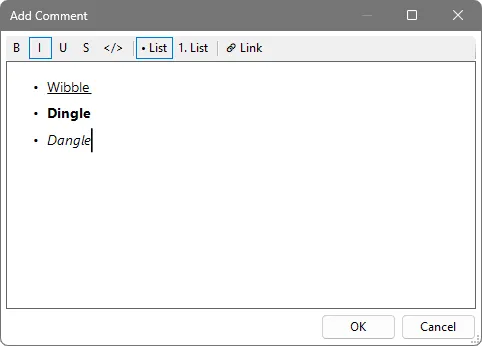
- In comments: bold, italic, underline, strikethrough, inline code, bullet and numbered lists, and links.
- Keyboard shortcuts you would expect - Ctrl+B, Ctrl+I, Ctrl+U, Ctrl+K for a link, Ctrl+Z and Ctrl+Y for undo and redo. Hover over a toolbar button to see its shortcut.
- Copy and paste within Jirion keeps your formatting.
Change many issues at once
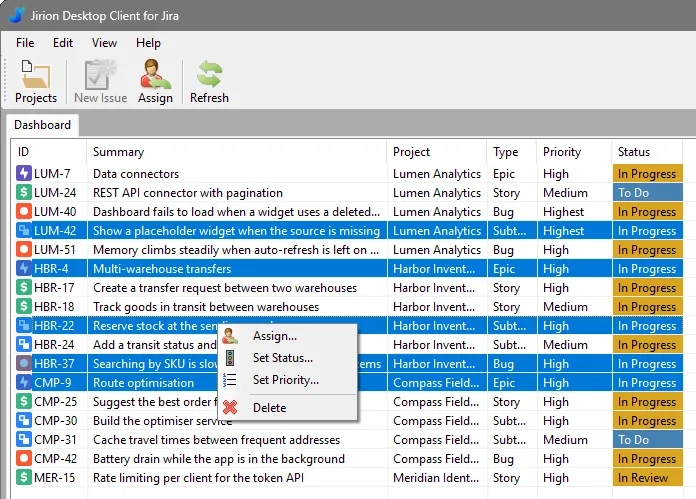
Select several issues (Ctrl+click or Shift+click), then right-click or use the Edit menu to Assign, Set Status, Set Priority or Delete them all. It works the same way on the Dashboard, on project tabs and on a version's issues.
- Set Status is honest about what is possible. Jira only lets an issue move along the steps its workflow allows, and different issues may be in different places. Jirion checks each selected issue and offers the statuses at least one of them can reach, noting when only some can ("3 of 5 issues").
- You see progress and problems. A progress window shows each issue as it is changed, and anything that could not be changed is listed afterwards. Nothing is skipped silently.
- Delete asks first. It lists what will go, and warns that deletion is permanent and takes any subtasks with it.
Parents and subtasks
- Add Subtask creates a subtask under the current issue (if the project has more than one subtask type, you choose which).
- Link Existing attaches subtasks that already exist in the project.
- Change or clear an issue's parent from its Details tab, and click the parent's key to jump to it. A subtask must always have a parent, so it can be changed but not cleared.
Versions and releases
On a project tab, the Versions button opens that project's versions in a tab of their own.
- Create, edit and delete versions - name, description, release date, and whether it is released or archived. Deleting a version unlinks its issues; it does not delete them.
- See a version's issues. Double-click a version to open a tab listing every issue on it, whatever its status.
- Add or remove issues from that tab, or set an issue's Fix Version(s) from its own window.
Stays in step with Jira
Jira cannot push changes to a desktop app, so Jirion asks it, cheaply and often, what has changed on the issues you have on screen. When a colleague edits, assigns, moves or deletes one, just that row or window updates - the list is not reloaded, so your selection and scroll position stay put. Changes you make yourself show up everywhere at once: in the Dashboard, in project and version tabs, and in any issue window.
- Choose how often it checks - from every 15 seconds to every 5 minutes - or turn it off, in Edit → Options.
- It checks again when you come back to the Jirion window, pauses while it is minimised, and backs off by itself if Jira is slow to answer.
Everyday comforts
- Light and dark themes. Choose in Options. The first time you run Jirion it follows your Windows setting.
- Stay signed in, if you want to. Jirion can remember your address, email and token. The token is saved encrypted by Windows, for your user account only.
- Forgiving sign-in. Paste the address from your browser - even a full board or issue address - and Jirion trims it down to your site. Stray spaces from copying a token are removed, and if sign-in fails the form comes straight back with what you typed.
- Plain-English errors. A mistyped address, a lost connection, a slow response, a proxy or certificate problem each get their own explanation of what to check.
- Built-in updates. Help → Check for Update shows what has changed and installs the new version.
- Help close at hand. Online help, bug reports and feedback are all in the Help menu.
What Jirion doesn't do yet
Jirion is not a replacement for all of Jira, and it does not try to be. Today it does not include:
- Attachments, or showing images that are embedded in descriptions and comments
- Searching, JQL queries or saved filters (you work from your Dashboard, project tabs and Open Issue)
- Boards and sprints
- Time tracking and estimates
- Labels, components, custom fields and issue links
- Desktop (pop-up) notifications - Jirion updates its lists, but does not alert you when it is in the background
- Sign-in other than email and API token (no single sign-on)
- Jira Server or Data Center, and any platform other than Windows
Is one of these holding you back? Tell us - it helps decide what comes next. You can also see the release notes.
Need a hand? Getting Started · Support · Report a bug · Give feedback · Donate
Jirion is an independent product of ANB Software Ltd. It is not affiliated with, endorsed by or sponsored by Atlassian. Jira and Atlassian are trademarks of Atlassian Pty Ltd.